Suffusion Custom Style Navigation Bar tutorial teaches you how to add some style to the navigation bar above the header.
Last Updated: June 25, 2016
Remember these settings are simply to show you how to add style, I am not looking at the cosmetic side of my tutorial :) you can choose your own settings.
Revision Update: I have edited some of the content and added a link.
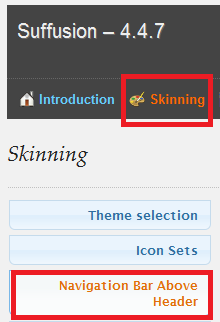
1 ) Navigate to Appearance >> Suffusion Options >> Skinning >> Navigation Bar Above Header and make sure that you select Custom style. See image below.
Hint: Keep saving your work and make sure that you have selected Custom style or else your custom style will not be saved.
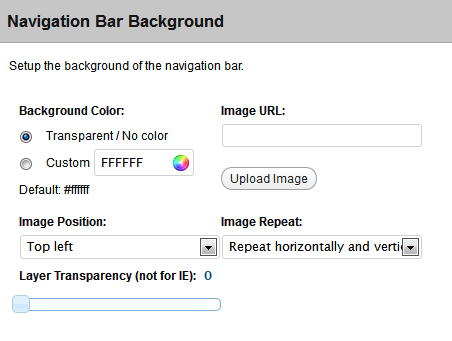
2 ) Go to Navigation Bar Background and select Transparent / No color. This is all you need to do to remove the white background from the navigation header as mentioned in the previous tutorial Creating a Suffusion Menu above the Header. See image below.
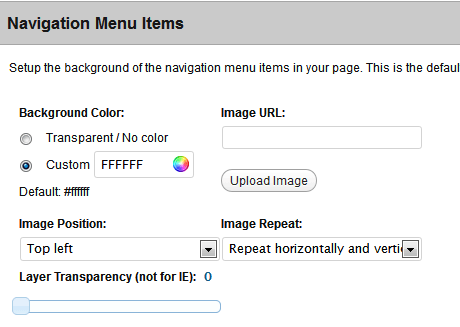
3 ) Go to Navigation Menu Items and under Background Color select Custom. I chose white background. You can choose any colour you want. See image below.
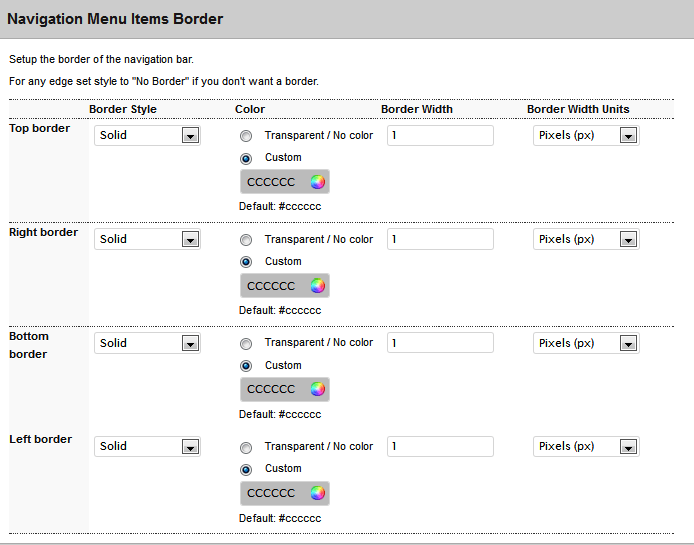
4 ) Go to Navigation Menu Items Border and select the following as illustrated in the image below.
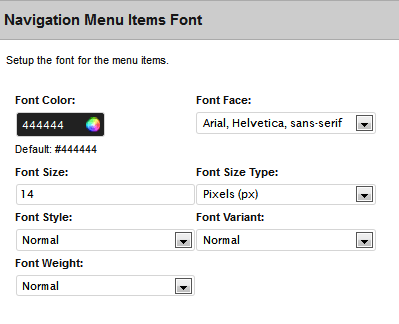
5 ) Go to Navigation Menu Items Font and choose which ever colour your prefer. I chose black font colour, you can also change the font style, size etc. See image below.
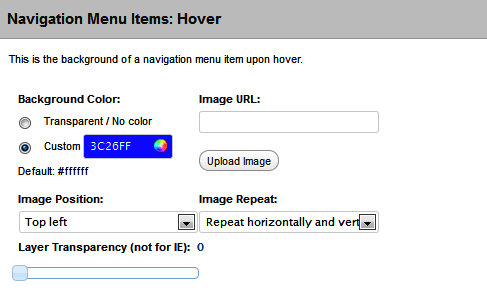
6 ) Go to Navigation Menu Items: Hover and select Custom and choose your colour. I chose blue for my hover background. You can also add an image to the background but for tis tutorial I am just going to be looking at adding a colour. See image below.
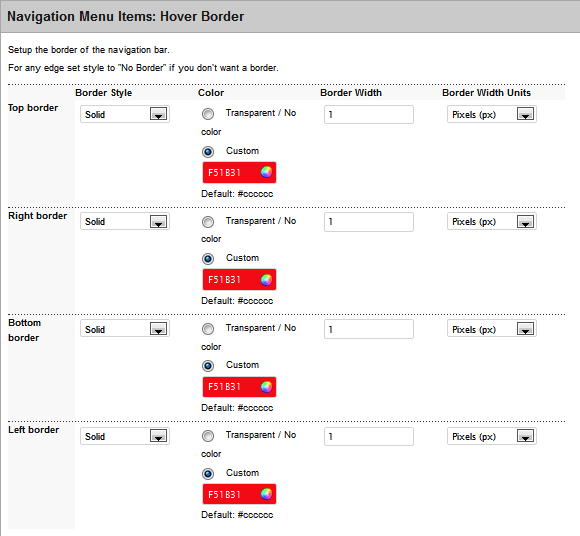
7 ) Go to Navigation Menu Items: Hover Border and select the border colour of your choice. I chose red and for the Border Width I chose 1. You can choose your own settings. See image below.
I hope you enjoy this little tutorial. I will be updating this tutorial from time to time, so make sure you come back for the latest updates. If you have any questions please let me know.
Enjoy
More suffusion tutorials:
 I have been working in IT since 1999 and I enjoy the challenges it brings me. I love developing websites with WordPress. I spend a lot of time helping out in wordpress.org forums. I have been writing tutorials since 2011. Now I am learning how to manage my own VPS "Virtual Private Server.
Question for you. I’m using suffusion for my selfhosted blog and want to create a page that has a static background image of a bulletin board…and then later add pictures so they look like they are pinned on the board. How do I configure suffusion to have this background on that new page, and only that new page? I am pretty new and have limited HTML programming experience, but found some comments that mentioned I need to do enter information in the “custom.css” area, which I cannot find. Any help would be great!
Hi Ron, thank you for your question.
One way to achieve your goal is to add a custom template page. There are many tutorials on the net that can help you. There will be some css coding involved as well. If you need more help let me know.
Kind regards
I’m trying to change the width of the nav bar — but I can’t find width specification for #nav in the regular stylesheet — it’s in “custom styles” it seems and i dont know where this is.
i can change padding, for instance in the #nav in styles, but the width is being overridden elsewhere.
how do i access this other style sheet? i also cant find a way in suffusion options > nav below header which other folks have suggested.
any suggestions?
Hello tova thank you for your question. First have a read through my other tutorial about the layout . This will give you an idea of how to setup your menus at the same time.
What do you mean by
I look forward to your reply.
Kind regards
Hello Sir!
I have seen that your navigation bar below the header which has two buttons completely blend with the image in the header. While in my website the image is not blending and it shows some space between navigation bar buttons and the image. Can you please advise me on how to do it like you have blended.
Hello Rishit Shah, thank you for your question. In order to achieve your question you will have to design your header image and increase the height. The height has to be the same as your header section. Your header section is set to 226px in height.
I hope this helps you.
Kind regards